Elasticsearch
This page describes how to connect to your Elasticsearch database and query it from your Appsmith app.
Connect Elasticsearch
If you are a cloud user, you must whitelist the IP address of the Appsmith deployment 18.223.74.0/32, 3.131.104.27/32, and 3.148.74.197/32 on your database instance or VPC before connecting to a database. For instructions on IP Filtering in Elasticsearch, see the Elasticsearch docs.
Connection parameters
The following is a reference guide that provides a description of the parameters for connecting to Elasticsearch.
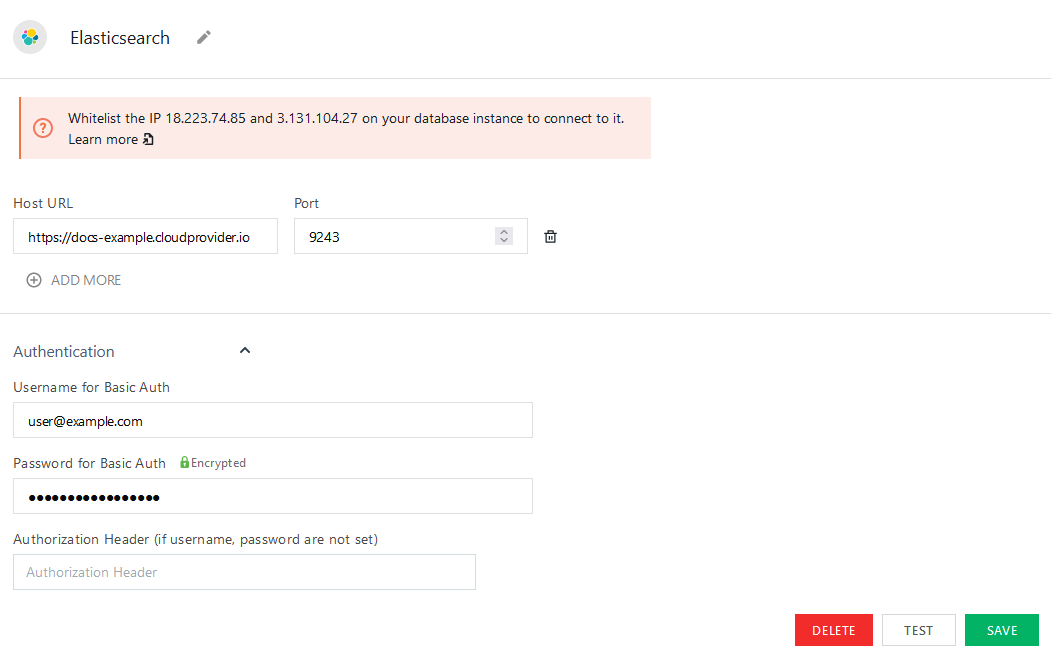
Host URL
Port
Username/Password for Basic Auth
Authorization Header
Query Elasticsearch
The following section provides examples of creating basic CRUD queries to Elasticsearch.
For details on building more complex queries, see the Elasticsearch Document API documentation.
Method
- GET: Method used for requesting and fetching data.
- POST: Method used for creating or updating records.
- PUT: Method used for creating or updating records.
- DELETE: Method used for deleting records.
Path
/users/_search is the endpoint used for searching the users index.Body
Search documents
Queries run on top of indexed documents can be configured using the GET method.
Path:
/users/_search
Body:
{
  "query": {
    "match": {
      "user.name": {{ UsersTable.searchText }}
    }
  }
}
The example above searches the users index for a name matching your user input from a Table widget called UsersTable.
Create a document
You can create a single new document using the POST method, with a JSON body that represents the document values; an id is automatically generated.
Path:
/users/_doc/
Body:
{
    "name": {{ NewUserForm.data.Name }},
    "email": {{ NewUserForm.data.Email }},
    "gender": {{ NewUserForm.data.Gender }},
}
Above, user input is collected with a Form widget called NewUserForm.
Update a document
A single document can be updated using its id within an index using a POST request.
Path:
/users/_update/{{ UsersTable.selectedRow.id }}
Body:
// using a JSON Form widget to collect input
{
  "doc": UpdateUserForm.formData
}
Above, the record with its id is selected from a Table widget called UsersTable and updated with input from a JSON Form widget.
This performs a partial update, where the properties you supply are added to the document; you don't need to add ones that have not changed.
Delete a document
A single document can be deleted using its id within an index using the DELETE method.
Path:
/users/_doc/{{ UsersTable.selectedRow.id }}
Above, the record with its id is selected from a Table widget called UsersTable.
Troubleshooting
If you are experiencing difficulties, you can refer to the Datasource troubleshooting guide or contact the support team using the chat widget at the bottom right of this page.
See also
- Display and Lookup Data in Table - Learn how to display query results in a Table and enable users to look up data with ease.
- Search and Filter Table Data - Guide on adding search and filter functionality to Tables for better data navigation.
- Update Data - Understand how to update data in your application using Form widget.
- Insert Data - Step-by-step instructions on inserting new records into your database using Form widget.